

Home Office Essentials Checklist 2026: Comfort & Productivity Guide
 devrouwaUpdated March 31, 2026
Home Office Essentials Checklist 2026: Create a Workspace That Works for You
Whether you are working from home full-time, splitting your week between office and home, or ramping up a side project at your desk, the quality of your workspace directly shapes how you feel and perform. A thoughtful home office setup reduces fatigue, improves focus, and helps you work through the day without strain. This home office essentials checklist 2026 covers the ergonomic, environmental, and organizational foundations that turn any corner into a productive, comfortable place to work.
The Core Ergonomic Foundation
Ergonomics is the science of fitting your environment to your body—not the reverse. When your desk, chair, monitor, and keyboard align with how you naturally sit and reach, you experience less discomfort and maintain better posture throughout the day.
Chair and Seating
Your chair is the single most important piece in your home office. A chair that supports your spine and allows your feet to rest flat on the floor creates the baseline for everything else. Look for:
- Lumbar support: A curve that follows the natural arch of your lower back, adjustable if possible
- Seat height adjustment: Allow your hips and knees to sit at roughly 90 degrees, with feet flat on the floor or a footrest
- Armrests: Positioned so your elbows sit at a 90-degree angle when typing; armrests should be adjustable or removable if they interfere with your desk
- Breathable material: A mesh or fabric backing that promotes airflow during longer work sessions
According to the U.S. Occupational Safety and Health Administration (OSHA), proper seating and desk alignment are core practices to reduce strain and fatigue. Test your chair by sitting for an hour; if you find yourself shifting constantly or experiencing lower-back strain, adjustment or replacement may help.
Desk Height and Layout
A well-proportioned desk puts your keyboard and monitor within easy reach. Standard desk height is around 28–30 inches, which works for many people; however, your body is the best guide. When sitting upright with arms at rest, your elbows should be close to 90 degrees and your wrists should be in a neutral (straight) position over the keyboard.
Arrange your most-used items—keyboard, mouse, phone—in a zone roughly 10–15 inches from the edge of your desk, within arm’s reach without stretching or leaning forward.
Monitor and Screen Positioning
Eye strain and neck discomfort often stem from poor monitor placement. Follow these guidelines:
- Distance: Position your monitor 20–30 inches away from your eyes (roughly an arm’s length)
- Height: The top of the screen should be at or slightly below eye level when looking straight ahead. If you use a laptop, consider a separate external monitor or a monitor stand to raise it
- Angle: Tilt the monitor so the screen is perpendicular to windows or light sources, reducing glare and reflection
- Number of screens: If using dual monitors, position one directly in front of you and the second at an angle, so you do not spend the day looking to one side
The National Institute for Occupational Safety and Health (NIOSH) provides evidence-based guidance on visual ergonomics; proper screen placement reduces eye fatigue and helps maintain a neutral neck posture.
Keyboard, Mouse, and Input Devices
Your hands spend hours on these devices, so placement and design matter. A keyboard and mouse positioned too high, too low, or at an awkward angle can create wrist strain and fatigue.
- Keyboard height: Should allow your wrists to float in a neutral, straight line (not bent down or up) while typing. Many workers benefit from a keyboard tray or a slightly recessed area of the desk
- Mouse placement: Keep the mouse at the same height as your keyboard, close to your body so you do not have to reach far or rotate your shoulder
- Split or ergonomic keyboards: Some people find a split layout, slight curve, or angled keyboard reduces wrist strain; experiment to find what feels natural to your hands
- Mouse alternatives: A trackpad, vertical mouse, or trackball can reduce repetitive wrist rotation for some users
Wrist position is a key factor in comfort during long work sessions. If you experience wrist discomfort, try adjusting keyboard height and mouse position before considering other changes.
Lighting and Eye Comfort
Adequate, well-placed lighting reduces eye strain and supports alertness throughout your workday. Poor lighting—whether too dim, too bright, or creating glare—causes fatigue and headaches.
Natural Light
If possible, position your desk to benefit from daylight. Natural light boosts mood and focus. However, avoid placing your monitor directly in front of a window, as the bright background will cause screen glare and strain your eyes.
Task Lighting
Add a desk lamp or task light to illuminate your work surface without creating glare on your screen. A light source positioned to the side or behind your monitor, angled slightly toward your desk, is typically most effective.
Overhead and Ambient Light
Pair your task light with softer ambient lighting to avoid contrast-heavy environments. Harsh overhead fluorescent lights can create flicker and reduce comfort; if you use overhead fixtures, consider replacing them with full-spectrum or warm-white bulbs.
The research on workplace lighting suggests that proper illumination supports visual comfort and productivity. Experiment with angle, brightness, and color temperature to find what feels right for your space.
Acoustics and Distractions
Sound management is often overlooked but essential for focus and wellbeing. Background noise, interruptions, and poor audio quality during calls drain mental energy and reduce productivity.
- Noise-dampening materials: Rugs, curtains, foam panels, or bookshelves absorb sound and reduce echo in a home office
- Headphones or earbuds: High-quality audio gear supports clarity during calls and helps you immerse in focused work
- White noise or ambient sound: Some workers find low-level background sound (fan, ambient music, brown noise) helps mask distracting household noise and supports concentration
- Microphone: A dedicated external microphone improves call quality and reduces the need for colleagues to ask you to repeat yourself
- Door and spatial separation: If possible, position your desk away from high-traffic areas and close a door to signal focus time
Organization and Workflow Systems
A cluttered desk drains focus and creates friction in your workflow. An organized space supports mental clarity and helps you find what you need without interrupting your work.
Desktop Organization
- Keep only current projects and frequently used items on your desktop surface
- Use drawer dividers, small bins, or trays to corral pens, notepads, cables, and small supplies
- Position filing or storage at arm’s reach but out of your direct line of sight
Cable Management
Tangled cables create visual clutter and make adjustments difficult. Use clips, velcro straps, or cable sleeves to bundle cords behind your desk, and label them for easy identification.
Digital Organization
A tidy digital workspace is as important as a clean physical one. Establish a folder structure on your computer, use consistent file naming, and clear your desktop of old documents. This reduces mental load and saves time searching for files.
Five Actionable Setup Tips to Get Started
1. Measure and Adjust Your Desk Height
Sit upright in your chair with your feet flat on the floor. Rest your arms at your sides. Your elbows should be at a 90-degree angle, and your keyboard surface should be just below or level with your elbow. If your current desk is too high or too low, add risers, use a keyboard tray, or adjust your chair height (with a footrest if needed).
2. Position Your Monitor at Eye Level
If your monitor is too low, your eyes naturally look down, creating neck strain over time. Use a monitor stand, books, or an adjustable arm to raise your screen so the top sits at or just below eye level.
3. Add a Task Light and Remove Glare
Place a desk lamp to the side of your monitor to light your work surface without reflecting off the screen. Angle it to avoid direct glare. This small change often reduces eye fatigue significantly.
4. Create a Cable and Supply Zone
Identify a storage area (drawer, shelf, or under-desk bin) for chargers, spare cables, notepads, and office supplies. Bundle visible cables with clips or sleeves. A clear desktop reduces decision fatigue and makes your space feel larger and calmer.
5. Establish a Movement and Break Routine
Even the best chair and desk cannot replace regular movement. Stand up and stretch every hour, walk around, or do a few minutes of gentle movement. Many workers find a simple desk timer or calendar reminder helps build this habit.
Seasonal and 2026 Workspace Trends
As hybrid work becomes standard and home offices mature, several themes are emerging:
- Adaptable furniture: Adjustable-height desks, multi-use tables, and modular seating allow your setup to evolve with your needs
- Air quality: More workers are paying attention to ventilation, humidity, and indoor air quality—factors that affect alertness and comfort
- Biophilic design: Plants, natural materials, and views of nature support mental wellbeing and focus
- Minimal, intentional setup: Moving away from accumulation toward purposeful, high-quality essentials that truly support your work
- Acoustic awareness: Home offices are getting quieter and more sound-managed, reflecting the importance of focus and call quality
Your Home Office Essentials Checklist at a Glance
Ergonomic Foundation: Chair with lumbar support, desk at proper height, monitor at eye level, keyboard and mouse in neutral reach
Lighting: Natural light source, task lighting angled to avoid glare, adequate ambient light
Acoustics: Sound-dampening materials, quality audio gear, background noise management
Organization: Clear desktop, organized storage, cable management, digital filing system
Comfort Supports: Footrest if needed, wrist support options, break reminders, movement routine
Conclusion
A thoughtfully designed home office is an investment in your daily comfort, focus, and wellbeing. You do not need to overhaul everything at once. Start with the ergonomic foundation—chair, desk height, and monitor position—then layer in lighting, organization, and acoustic refinements. Pay attention to how your body feels and what helps you focus, and adjust from there. When your workspace supports you physically and mentally, work becomes less of a strain and more of a flow.
This article is for general information about workspace comfort and ergonomics. It is not medical advice, diagnosis, or treatment, and it does not replace care from a qualified health professional. If you have pain, numbness, weakness, or symptoms that do not improve, seek appropriate medical attention.
Explore Office On A Budget for more practical guidance on creating a workspace that works for you.
Related products
Items from the store that pair with topics in this article.
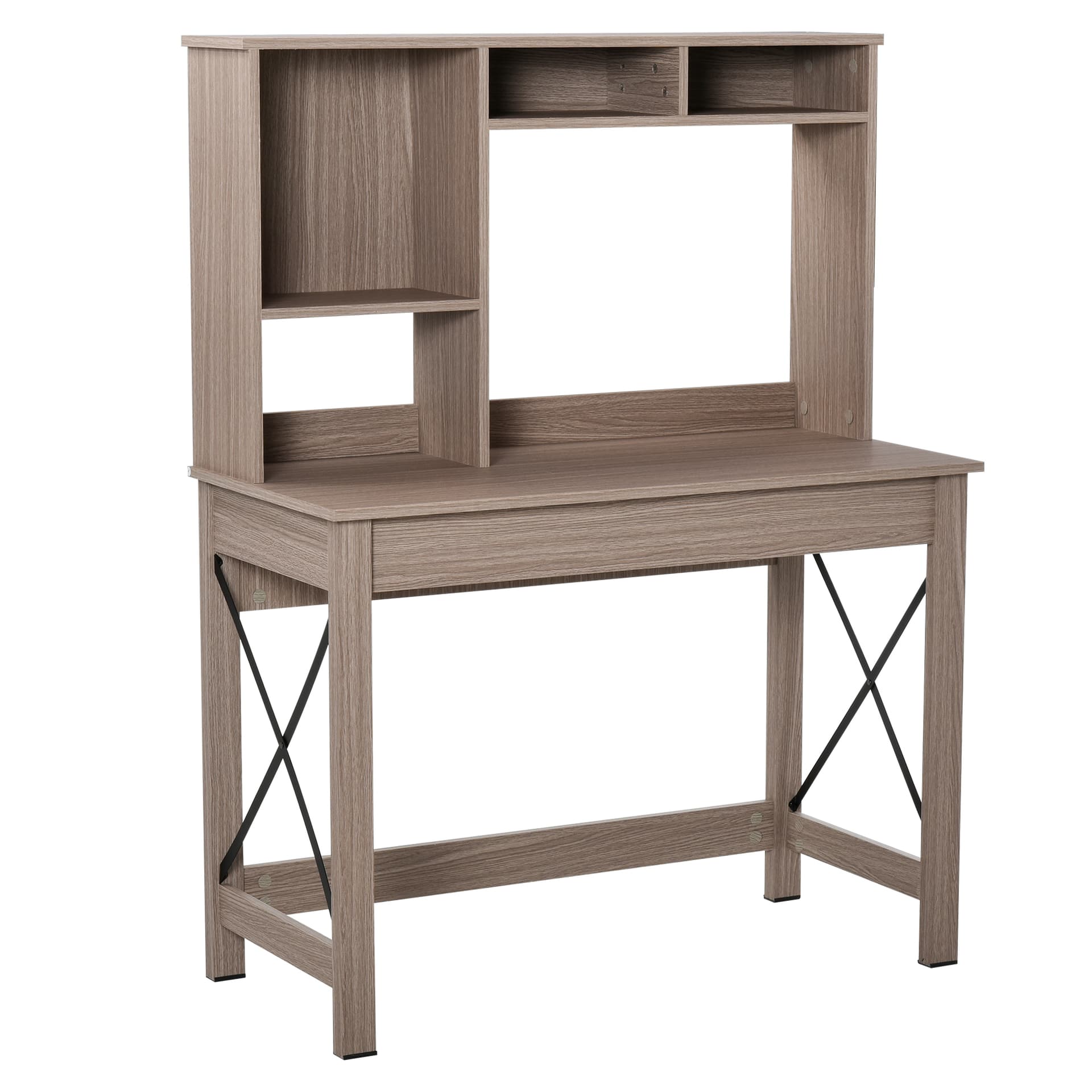
Computer Desk with Hutch, Home Office Table with Storage Shelves and Open Compartments for Writing, Work, Brown

Computer Desk with Storage Sheves and Foldable Tabletop, Writing Desk for Home Office and Study, White, Natural

3 Drawer Filing Cabinet, Steel Home Office Storage Cabinet with Wheels, Lock for A4, Letters, Legal-sized Files, White

47" L-Shaped Desk with Keyboard Tray, Computer Corner Desk for Small Space with Shelves, Drawer, CPU Stand, Home Office Writing Table, White

Metal Filing Cabinet 3 Drawer, Mobile Office Cabinet with Wheels for Legal, Letter, A4 File, Black

47" Computer Desk with Keyboard Tray and Storage Drawers, Home Office Workstation Table with Storage Shelves, White
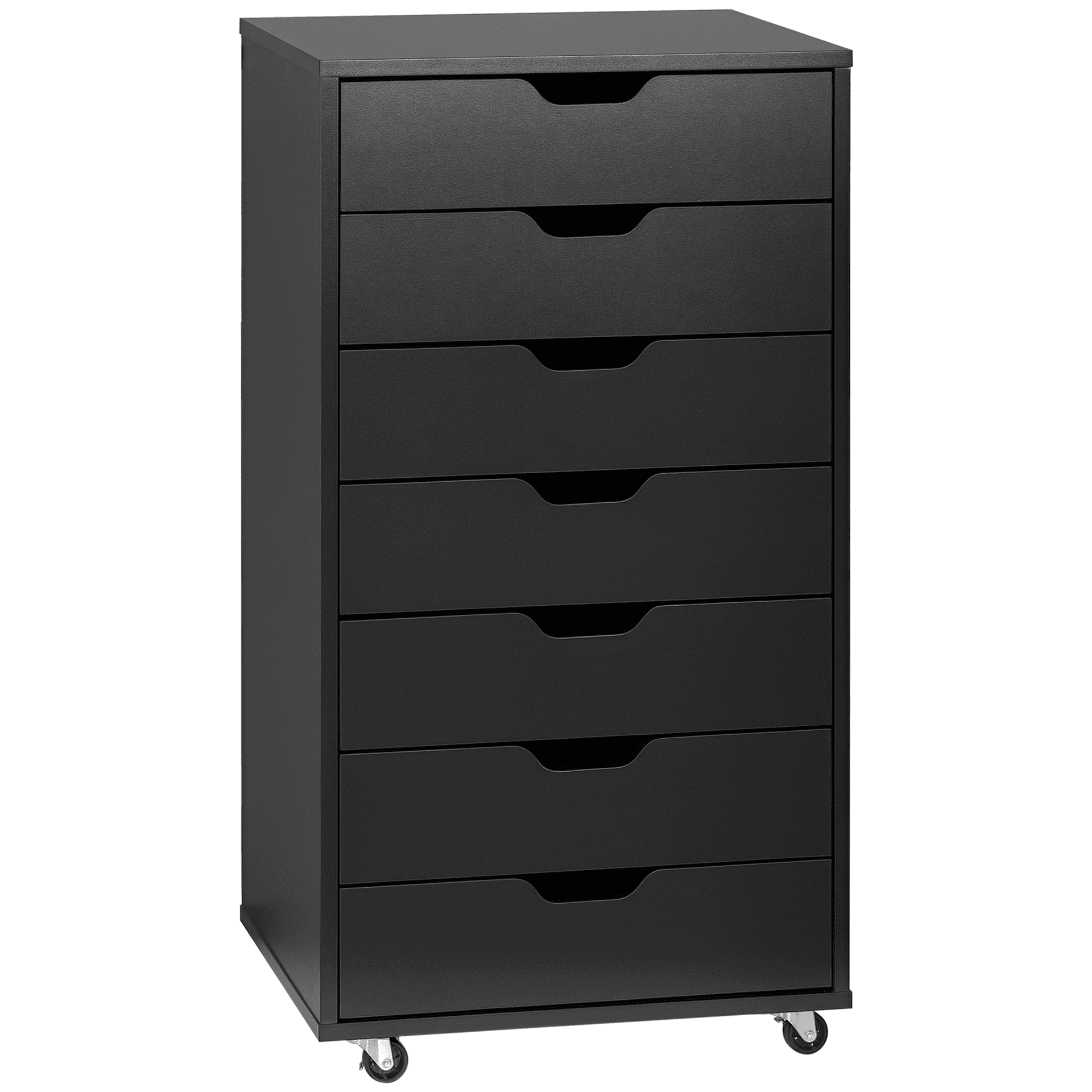
7-drawer Vertical File Cabinet for Home Office, Storage Cabinet with Wheels, 18.7"x15.6"x35.4", Black
