

How to Position Dual Monitors for Neck Pain Relief
 devrouwa
How to Position Dual Monitors for Neck Pain Relief
If you spend hours each day looking at screens, the way your monitors sit can make a significant difference in how your neck feels by the end of the workday. Many professionals who switch to dual-monitor setups find that poor placement leads to awkward head and neck positioning, which can create fatigue, stiffness, and discomfort over time. The good news is that thoughtful monitor arrangement—combined with a few straightforward adjustments—can help you maintain a more neutral posture and reduce the strain on your neck and shoulders.
This guide covers practical, evidence-based strategies for positioning dual monitors in a way that supports comfortable, sustainable desk work.
Understanding Neck Strain and Monitor Placement
Your neck is designed to hold your head in a relatively upright position. When your monitors are too low, too high, or positioned at awkward angles, your neck muscles work harder to maintain focus and reach toward the screen. Over hours and days, this extra effort accumulates.
According to occupational health research, monitor height and distance are among the most critical factors in reducing upper-body discomfort. The U.S. Occupational Safety and Health Administration (OSHA) emphasizes that proper screen positioning is a foundational element of a comfortable workspace.
With two monitors, the challenge is deciding how to arrange them so that your eyes and neck don’t have to work harder than necessary to see both screens while maintaining a natural posture.
Primary Monitor Placement and Eye Level
The first rule for how to position dual monitors for neck pain relief is to place your primary monitor directly in front of you at eye level. This is the screen you look at most—whether it’s where your main application sits, your email, or communication tools.
Height guideline: The top of your primary monitor should be at or slightly below eye level when you sit with your back against your chair and look straight ahead. The center of the screen is often positioned about 15–20 degrees below horizontal eye gaze, which aligns with natural downward gaze.
Distance guideline: Position your primary monitor about an arm’s length away—roughly 20–26 inches from your eyes, depending on screen size and your vision. This distance helps reduce eye strain and allows your neck to stay neutral without leaning forward.
If your monitor is too close, you may unconsciously lean back or crane your head. If it is too far, you might lean forward to see detail, both of which add neck strain over time.
Secondary Monitor Positioning Strategies
Once your primary monitor is properly positioned, your secondary monitor’s placement becomes crucial. There are two main approaches, and the best choice depends on your workflow.
Side-by-Side Arrangement
Placing both monitors side by side, with one on the left and one on the right, is a common setup. However, this arrangement can encourage excessive head rotation if you spend equal time on both screens.
Best practice: If you use this layout, angle the secondary monitor slightly inward (about 30 degrees) toward you so both screens are visible without extreme neck rotation. Position the secondary monitor at the same height as the primary, or slightly lower if you refer to it less frequently.
The secondary monitor should still be within comfortable viewing distance—not so far away that you strain to see it, but positioned so that glancing at it does not require a dramatic head turn.
Stacked Arrangement
Some professionals place one monitor directly above the other. This setup can work well if your workflow clearly separates tasks—for example, reference material on top and active work below—but it requires careful height adjustment to avoid looking up too much.
Best practice: Keep the lower monitor at your standard eye level for your primary work. Position the upper monitor so the top is not much higher than your natural gaze; the lower edge of the upper monitor should ideally sit near or slightly above eye level. This prevents excessive upward neck extension.
Five Actionable Tips for Dual-Monitor Setup
1. Use a Monitor Arm or Stand
Adjustable monitor arms or stands give you the flexibility to fine-tune height, depth, and angle without being locked into fixed desk holes or stand feet. Look for arms that support dual monitors and offer independent adjustment so each screen can be positioned to your body’s positioning, not your desk’s dimensions.
2. Maintain Equal Viewing Distance
Both monitors should be roughly the same distance from your eyes. If one is significantly closer or farther, you will unconsciously adjust your posture to favor it, creating muscle imbalance and strain. Regularly measure and adjust to keep both screens at approximately 20–26 inches away.
3. Angle Secondary Monitor Toward Your Centerline
Rather than placing the secondary monitor at a 90-degree angle to your body, angle it inward 20–40 degrees. This reduces the need to rotate your neck fully toward it and keeps your head and spine in a more neutral position when switching between screens.
4. Take Regular Micro-Breaks and Move
Even with perfect monitor positioning, holding any posture for hours creates fatigue. Every 30–60 minutes, look away from your screens, stretch your neck gently, and shift position. The CDC offers workplace wellness guidance that emphasizes regular movement breaks as part of a comfortable work routine.
5. Position Your Keyboard and Mouse Consistently
Monitor placement works best when your keyboard and mouse are also positioned to support neutral posture. Your elbows should be at about 90 degrees, and your wrists relatively straight. If your keyboard is too high or your mouse too far away, you will compensate by adjusting your neck and shoulders, undoing the benefits of good monitor positioning.
Checking Your Setup: A Quick Assessment
After arranging your monitors, sit in your normal working position and assess a few things:
- Head position: Is your head balanced over your shoulders, or are you leaning forward, back, or to one side? Your chin should not jut forward.
- Eye gaze: Can you see both monitors with gentle head movements and natural eye movement, or do you need to rotate your head significantly?
- Comfort during focus: If you concentrate on one screen for 20–30 minutes, do you notice tension building in your neck or shoulders?
- Fatigue over time: By day’s end, are you experiencing fatigue or stiffness, or do you feel reasonably comfortable?
If you notice forward head lean, excessive rotation, or fatigue that builds as the day progresses, adjust monitor height, distance, or angle and observe the difference over a few days. Ergonomic setups often require small tweaks to match your unique body proportions and workflow.
Additional Considerations for Long-Term Comfort
Monitor positioning is only one part of a comfortable dual-screen workspace. The National Institute for Occupational Safety and Health (NIOSH) highlights that an ergonomic workspace combines proper furniture, equipment positioning, lighting, and movement habits.
Consider your chair’s height and back support, the ambient lighting in your room (to reduce screen glare and eye strain), and the positioning of other tools like your phone or reference materials. When these elements work together, monitor placement becomes even more effective at reducing neck strain.
If you share a desk with others or use multiple workstations, keep notes on what works for you—monitor height, distance, angle—so you can quickly recreate your setup elsewhere.
Conclusion
Positioning dual monitors thoughtfully is a practical, no-cost adjustment that can meaningfully improve your comfort during the workday. By placing your primary monitor at eye level, angling your secondary monitor toward your centerline, maintaining consistent viewing distance, and combining these changes with regular movement breaks, you create a workspace that supports a more neutral posture. Everyone’s body and workflow are different, so expect to spend a few days fine-tuning until your setup feels right. Small adjustments to how to position dual monitors for neck pain relief compound over time, helping you maintain focus and comfort throughout your day.
This article is for general information about workspace comfort and ergonomics. It is not medical advice, diagnosis, or treatment, and it does not replace care from a qualified health professional. If you have pain, numbness, weakness, or symptoms that do not improve, seek appropriate medical attention.
Explore more ergonomic workspace tips and practical guides at Office On A Budget.
Related products
Items from the store that pair with topics in this article.

35" L-Shaped Computer Desk with Monitor Stand and Open Shelves, Home Office Corner Desk Study Workstation for Small Space, White

55" Pine Wood Painting Easel Stand, Adjustable Folding Art Easel, Tilts up to 75° for Adults, Begginners and Students, Black
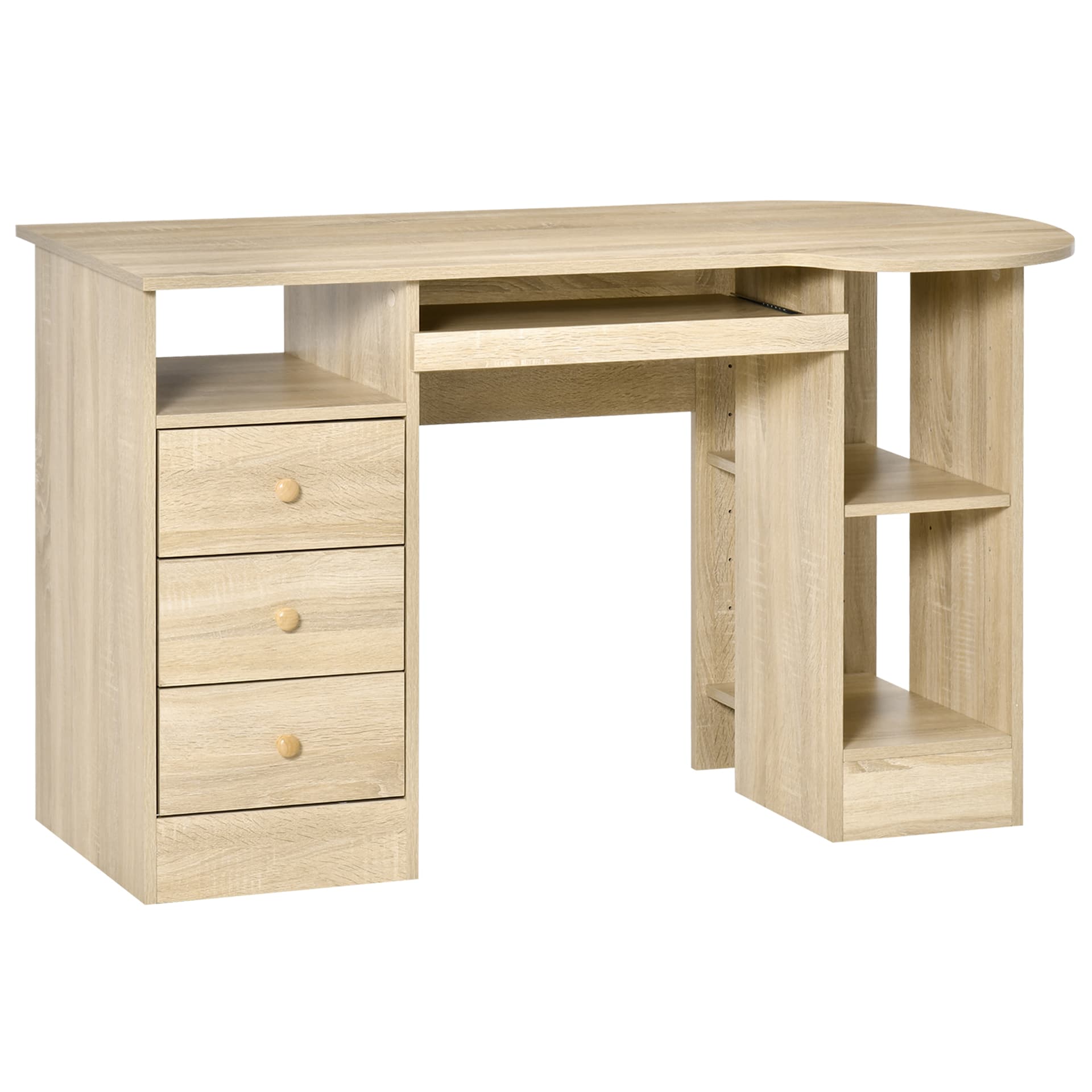
Computer Desk with Storage, Home Office Laptop Table with Shelves and Drawers, Modern Workstation Desk with Keyboard Tray

Computer Desk with Storage, Home Office Laptop Table with Shelves and Drawers, Modern Workstation Desk with Keyboard Tray for Study, Living Room, Black

PU Leather Executive Office Chair with High Back, Adjustable Height and Swivel Wheels, 400LBS Capacity, Brown
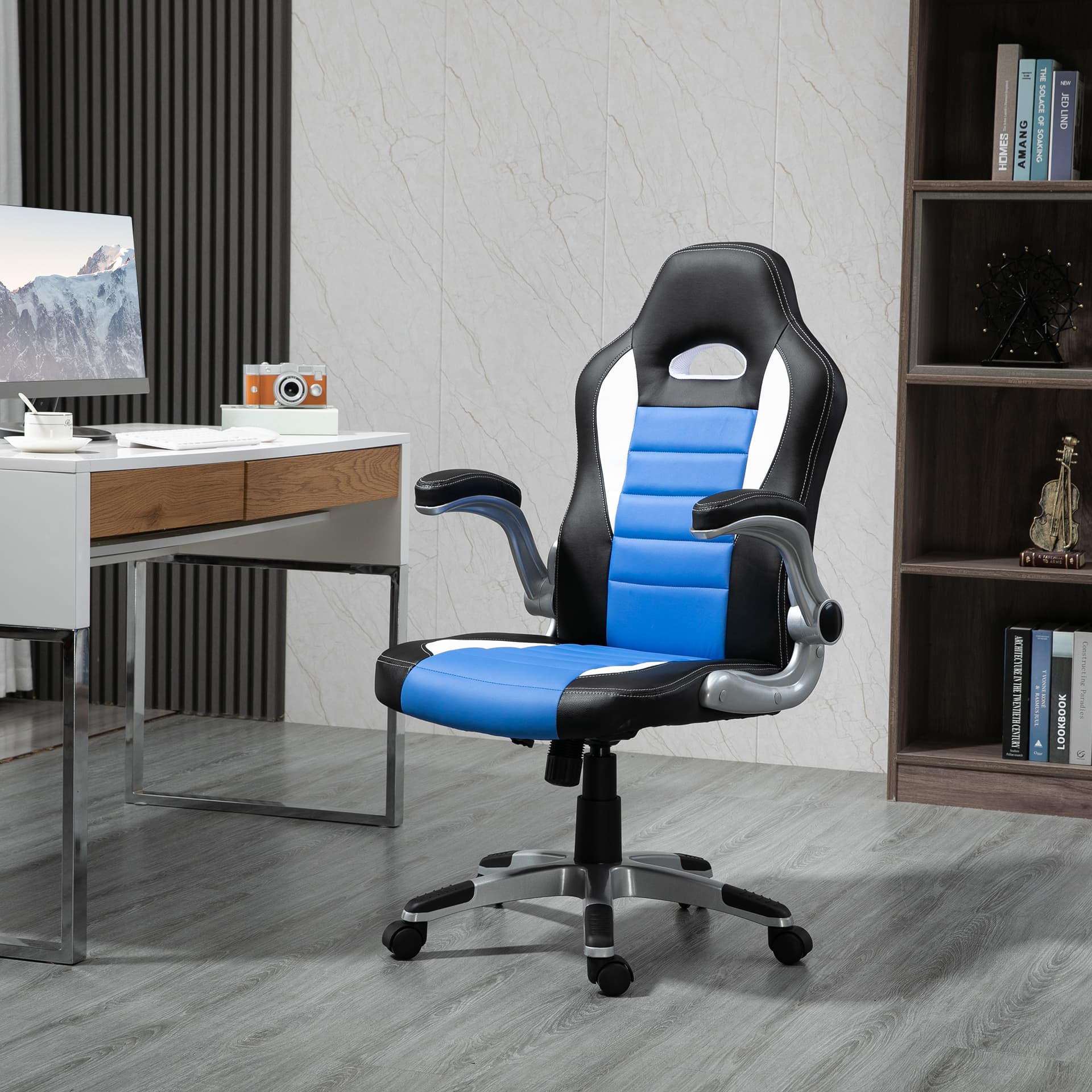
Racing Gaming Chair PU Leather Office Chair Executive Computer Desk Chair with Adjustable Height, Flip Up Armrest, Swivel Wheels, Blue
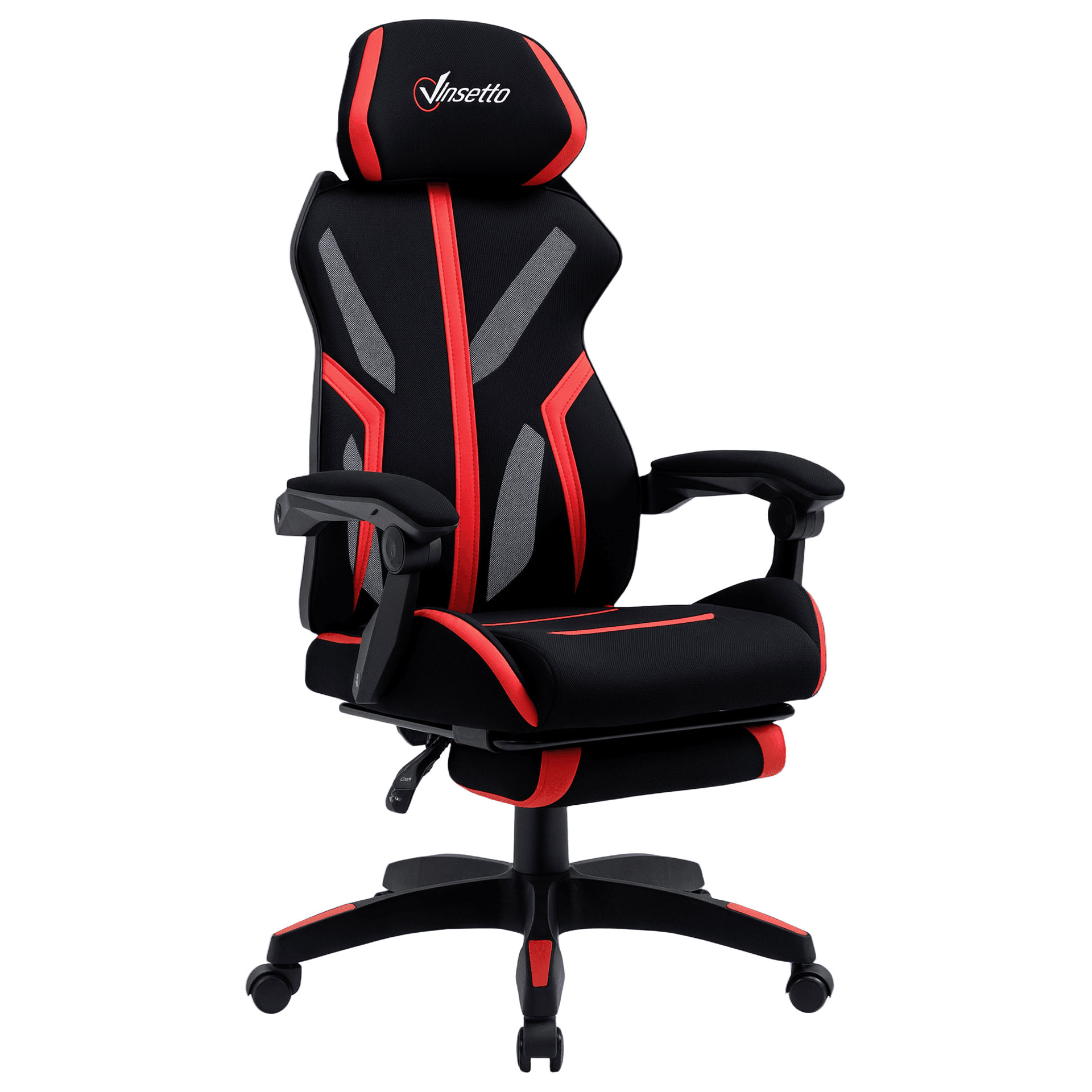
Racing Gaming Chair, Ergonomic Computer Chair with Footrest, Headrest, High Back Recliner Swivel Seat with Adjustable Height, Black Red
